
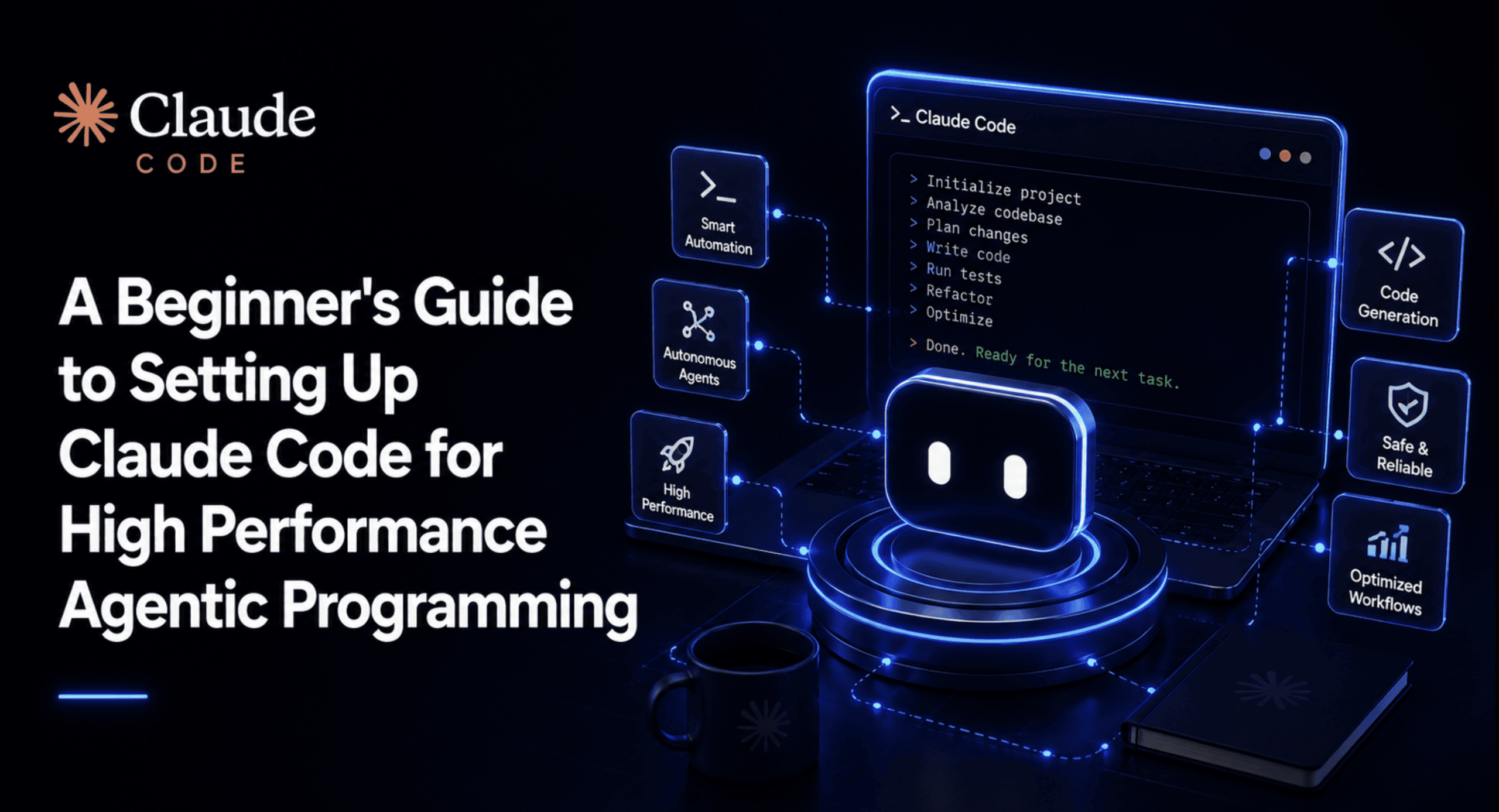
Most users of Claude Code never progress beyond the initial setup phase. They install the application, log in, input a prompt, receive a satisfactory response, and then largely disregard any configuration options. Weeks into their usage, they might notice sessions beginning to lose track of earlier decisions, encounter repetitive permission prompts throughout the day, and frequently reach a point where long tasks result in a barrage of context warnings, forcing them to abandon the conversation and start anew. This recurring challenge is not an inherent limitation of the Claude Code model itself, but rather a consequence of an suboptimal setup. While Claude Code comes equipped with sensible default configurations, these defaults are distinct from those optimized for high-performance operations. The gap between basic functionality and robust performance is largely bridged by a few configuration files that many novice users overlook. This comprehensive guide aims to bridge that gap, detailing the essential configurations, permissions, hooks, and command usage habits that differentiate a rudimentary installation from a system capable of sustained, high-performance agentic programming. The information presented is rigorously verified against Anthropic’s current documentation, ensuring accuracy and relevance beyond outdated assumptions.
Installing Claude Code: The Right Foundation
Claude Code is deployed as a standalone command-line interface (CLI). The current recommended installation method, as per Anthropic’s guidelines, utilizes a native installer, although an npm fallback option remains available for users who prefer managing it within their existing Node.js toolchain.
For macOS, Linux, or Windows Subsystem for Linux (WSL) users, the installation command is as follows:
curl -fsSL https://claude.ai/install.sh | bashFor Windows PowerShell users:
irm https://claude.ai/install.ps1 | iexAlternatively, if integration with existing Node.js tooling is preferred:
npm install -g @anthropic-ai/claude-codeUpon successful installation, it is crucial to navigate into a specific project directory before executing the claude command for the first time. This step is more significant than it might initially appear. Claude Code associates its project memory and settings with the directory from which it is launched. Consequently, initiating the tool from a general location like a home folder or desktop will prevent it from acquiring the appropriate context for any ongoing development tasks.
Navigate to your project directory:
cd your-project-directory
claude
The initial execution of Claude Code will guide the user through an authentication process. This typically involves either an OAuth login, requiring a Claude subscription (Pro, Max, or Team), or the utilization of an API key linked to a Console account. Beyond the terminal environment, Claude Code also offers integration through a VS Code extension, a JetBrains plugin, a dedicated desktop application, and a web-based interface accessible via claude.ai. This multi-platform availability ensures continuity for users who prefer to switch between terminal-based sessions and browser-based interactions. Importantly, all these interfaces draw from the same underlying settings and project files, meaning any configurations established in the terminal are seamlessly carried over to other environments.
While the installation process itself is straightforward, the true measure of Claude Code’s performance and reliability hinges on the meticulous configuration of three key files that are frequently overlooked in introductory guides.
The Core Configuration Files: The Engine of Performance
Claude Code derives its operational parameters from two primary locations: the project-specific .claude/ directory, complemented by a CLAUDE.md file at the project’s root, and a global ~/.claude/ directory that dictates settings across all projects on a given machine. A thorough understanding of the data hierarchy within these directories is the most impactful factor in ensuring Claude Code operates efficiently and consistently, as detailed in Anthropic’s official documentation concerning the .claude directory structure.
The practical principle that unifies these configuration layers, as emphasized across Anthropic’s documentation and independent analyses of the configuration system, is straightforward: persistent and fundamental rules should reside within CLAUDE.md. Instructions embedded solely within conversation history are prone to being lost during the automatic context compaction process that occurs in extended sessions. Therefore, any directive intended to endure beyond a single session’s lifespan must be explicitly documented.
Proactive Configuration of Permissions and Hooks
Claude Code operates across three distinct permission modes, which can be toggled using the Shift+Tab key combination.
Beyond these interactive modes, the settings.json file provides a mechanism for defining explicit permission rules. This prevents the need for manual approval of repetitive, safe commands, thereby streamlining the workflow.
  "permissions":
    "allow": [
      "Bash(npm test:*)",
      "Bash(npm run lint:*)",
      "Read(**)"
    ],
    "ask": [
      "Bash(git push:*)"
    ],
    "deny": [
      "Bash(rm -rf /*)",
      "Bash(sudo:*)",
      "Read(.env)"
    ]
This configuration achieves the following: commands matching the allow list are executed without requiring user confirmation; directives in the deny list are outright blocked, irrespective of any other matching rules; and any commands not explicitly listed fall back to requiring direct user authorization. The precedence of deny rules is critical: a denial will always take precedence over a broader allow rule. This hierarchical structure enables the granting of extensive read access and the execution of testing commands without inadvertently opening the door to potentially destructive operations.
Hooks extend the functionality of permission rules by enabling actions in response to specific commands. A PostToolUse hook, for instance, can be configured to automatically format files that Claude modifies. This is a widely recommended starting point for enhancing code quality and consistency.
  "hooks":
    "PostToolUse": [
      Edit",
        "hooks": [

            "type": "command",
            "command": "npx prettier --write "$CLAUDE_TOOL_INPUT_FILE_PATH""

        ]

    ]
This hook executes automatically after Claude writes or edits a file. It invokes Prettier, applying formatting to the exact file that was modified. The file path is dynamically provided by Claude Code via the $CLAUDE_TOOL_INPUT_FILE_PATH environment variable. This automation eliminates the need for manual reformatting after each edit, ensuring uniform adherence to style guidelines, whether the code was generated by Claude or written by the user.
A PreToolUse hook offers an even more robust safety measure by intercepting potentially dangerous commands before they are executed. Unlike permission rules that rely on pattern matching, a PreToolUse hook can inspect the precise command text for a more definitive assessment.
Consider the following Python script, saved as .claude/hooks/block-dangerous-bash.py:
#!/usr/bin/env python3
# .claude/hooks/block-dangerous-bash.py
import json, re, sys

DANGEROUS_PATTERNS = [
    r'brms+.*-[a-z]*r[a-z]*f',
    r'sudos+rm',
    r'chmods+777',
    r'gits+pushs+--force.*main',
]

input_data = json.load(sys.stdin)
if input_data.get('tool_name') == 'Bash':
    command = input_data.get('tool_input', ).get('command', '')
    for pattern in DANGEROUS_PATTERNS:
        if re.search(pattern, command, re.IGNORECASE):
            print("BLOCKED: matches a dangerous command pattern", file=sys.stderr)
            sys.exit(2)
sys.exit(0)
When Claude Code is about to execute a Bash command, it pipes the details of the tool call as JSON to this script via standard input. If the command matches any of the predefined dangerous patterns—such as recursive force deletion, sudo rm, world-writable chmod operations, or forced pushes to the main branch—the script will output a reason to standard error and exit with code 2. Claude Code interprets this exit code as a hard block, preventing the command from executing. This script can be registered in settings.json under PreToolUse with a Bash matcher, establishing a permanent safety net that operates independently of manual oversight.
Essential Commands for Enhanced Productivity
Claude Code offers an extensive library of over sixty built-in commands. Attempting to memorize all of them at the outset is an inefficient approach. The following table highlights the commands that directly impact session performance, categorized by their function and sourced from Claude Code’s official command reference.
| Command | Category | What It Does |
|---|---|---|
| /init | Setup | Scans the codebase and generates an initial CLAUDE.md file. |
| /memory | Setup | Opens the CLAUDE.md file for direct editing. |
| /clear | Context | Initiates a new conversation while retaining project memory. |
| /compact [focus] | Context | Summarizes conversation history to optimize context usage; accepts focus instructions. |
| /context | Context | Displays current context window utilization. |
| /plan | Planning | Toggles Plan Mode; Claude proposes actions before execution, requiring user approval. |
| /diff | Review | Presents an interactive diff of all changes made during the current session. |
| /code-review [–fix] | Review | Assesses the current diff for bugs; --fix automatically applies identified corrections. |
| /security-review | Review | Specifically checks the current diff for security vulnerabilities. |
| /review | Review | Provides a read-only review of a GitHub pull request. |
| /resume [session] | Navigation | Resumes a previous conversation by its name or ID. |
| /branch [name] (/fork) | Navigation | Forks the current conversation into a new, independent session. |
| /rewind | Navigation | Reverts code and/or conversation to a previous checkpoint. |
| /model | Cost & Performance | Switches the active model mid-session without losing context. |
| /effort | Cost & Performance | Adjusts reasoning depth (from low to max) based on task complexity. |
| /cost | Cost & Performance | Displays token usage and associated costs for API key users. |
| /agents | Delegation | Manages sub-agents: view, create, or invoke specialized agents. |
| /permissions | Configuration | Interactively manages permission rules. |
| /hooks | Configuration | Interactively manages hooks. |
| /doctor | Diagnostics | Checks the installation for configuration issues. |
For beginners, cultivating proficiency with /compact, /plan, and /diff is highly recommended. These three commands alone address the majority of initial frustrations, mitigating issues related to context degradation, unintended edits, and a lack of clarity regarding changes made. Mastery of these commands will form a solid foundation for utilizing the other functionalities effectively.
Developing a Custom /truth Command
It is important to note that /truth is not an out-of-the-box command in Claude Code. However, the underlying concept of a command that prompts Claude to verify its recent assertions against the actual codebase is highly valuable and addresses a potential gap in the tool’s capabilities. This serves as an excellent illustration of Claude Code’s custom command system.
To implement this, create a skill file at .claude/skills/truth/SKILL.md. This file will contain the definition for the new command:
---
description: Verify Claude's most recent claims and edits against the actual codebase
allowed-tools: Read, Grep, Glob, Bash(git diff:*)
---

Re-examine everything you just told me in this conversation against what
actually exists in the codebase right now. Specifically:

1. For every file you claim to have edited, read it again and confirm the
   change is actually present and matches what you described.
2. For every claim about existing code (a function's behavior, a config
   value, an import, a dependency version), verify it against the real
   file rather than your memory of reading it earlier in the session.
3. Run `git diff` and compare the actual diff against what you described
   changing.
4. Report back plainly: which claims checked out, which didn't, and
   exactly what the discrepancy was for anything that failed. Do not
   soften or hedge a discrepancy you find, state it directly.
The YAML frontmatter restricts this command to read-only tools and a scoped git diff command. This ensures that running /truth cannot alter any code, which is essential for a reliable verification process. The detailed instructions within the command body explicitly define the verification process: re-reading actual files rather than relying on Claude’s prior descriptions, and a directive for Claude to report discrepancies without softening the findings.
Once this file is saved, the /truth command becomes available within any session in that project. It can be accessed by typing / and filtering for it. It is advisable to run this command after Claude completes a multi-step task, particularly those involving modifications to multiple files or assertions about existing code that has not been recently re-examined. This principle of self-correction is fundamental to agentic systems: a verification step is only meaningful if it is compelled to examine external data, not just its own prior output. Directing /truth to the actual files and the git diff output ensures it functions as a genuine check.
Leveraging Subagents and Parallel Processing for Efficiency
The preceding configurations enhance the reliability of a single Claude Code session. Subagents, however, are instrumental in accelerating workflows that do not require sequential execution. A subagent is a specialized instance with its own isolated context window, system prompt, and tool permissions. Anthropic’s documentation describes subagents as operating independently of the main session, returning only a summary rather than bringing all intermediate files and tool calls back into the primary conversation.
This isolation is the key to performance gains. Tasks such as large-scale codebase exploration, dependency audits, and test generation are inherently verbose and can consume significant portions of the main session’s context budget. By delegating these tasks to a subagent, only the final result is returned to the main session, thereby conserving valuable context.
To create a subagent from within an active session, use the /agents command:
# Inside a session, ask Claude to create a subagent
/agents
Executing /agents opens an interactive menu for creating, viewing, and managing subagents. Alternatively, a subagent can be defined directly by creating a file at .claude/agents/<name>.md. This file utilizes a structure similar to the skill file, including frontmatter for model selection and tool access. A common starting point involves defining narrowly scoped subagents, such as a code-reviewer or test-runner, with read-only permissions. This ensures they can inspect and report findings without the capability to make modifications, embodying the principle of separation of concerns discussed in the context of hooks, but applied to delegation.
For true parallel processing—such as simultaneously editing disparate parts of a codebase without one change impeding another—Claude Code offers /batch commands and --worktree sessions. These features allow multiple Claude Code instances to operate concurrently in isolated Git worktrees, each with its own working directory to prevent conflicts. While this represents a more advanced workflow than a beginner might initially require, it is a powerful capability to be aware of once single-session limitations become a bottleneck.
A Practical Starter Kit: CLAUDE.md and settings.json
To consolidate the concepts discussed, here is a practical starting configuration for a new project. Save the following content as CLAUDE.md at your project’s root directory:
# Project Context

## Stack
- [Your language/framework here, e.g. Node.js, TypeScript, React]

## Commands
- Test: `npm test`
- Lint: `npm run lint`
- Dev server: `npm run dev`

## Conventions
- [Your code style rules, naming conventions, folder structure]

## Before finishing any task
- Run the test suite and confirm it passes
- Run `/truth` if the task involved editing more than one file
And here is a foundational ~/.claude/settings.json file:
  "permissions":
    "allow": ["Bash(npm test:*)", "Bash(npm run lint:*)", "Read(**)"],
    "ask": ["Bash(git push:*)"],
    "deny": ["Bash(rm -rf /*)", "Bash(sudo:*)", "Read(.env)"]
  ,
  "hooks":
    "PreToolUse": [

        "matcher": "Bash",
        "hooks": [ "type": "command", "command": "python3 .claude/hooks/block-dangerous-bash.py" ]

    ],
    "PostToolUse": [

        "matcher": "Write
    ]
These two files encapsulate the core principles outlined in this guide: sensible permissions that allow for safe, repetitive commands while outright blocking dangerous ones, automatic code formatting on every edit, and a project memory file that directs Claude to your project’s specific test and lint commands. Committing both files to your repository (with the exception of any sensitive information, which should be managed via .claude/settings.local.json for personal overrides) ensures that every team member cloning the project begins with a consistent, high-performance baseline.
Conclusion: Elevating Claude Code Performance
The distinction between a basic Claude Code setup and a high-performance configuration is not attributable to hidden features or arcane commands. It lies in the deliberate investment of approximately twenty minutes in configuring CLAUDE.md, settings.json, and a few essential hooks before embarking on substantial work. Neglecting these steps leaves users operating with the default settings, which often prove inadequate for sustained agentic programming. Every element detailed in this guide—from memory management files and permission rules to hooks and essential commands—is designed to preemptively address friction points that users would otherwise encounter repeatedly without resolution. By establishing a robust configuration once and committing it to the project repository, each subsequent session begins from a more optimized and reliable foundation, progressively enhancing productivity and reducing common frustrations associated with AI-assisted development.
Shittu Olumide is a software engineer and technical writer with a passion for leveraging cutting-edge technologies to craft compelling narratives. He possesses a keen eye for detail and a talent for simplifying complex concepts. Shittu can be found on LinkedIn and Twitter.