
Python and the rapidly expanding landscape of data projects often collide with a persistent challenge: dependency management. Navigating the intricacies of various Python versions, isolated virtual environments, system-level packages, and the subtle yet significant differences across operating systems can transform the seemingly straightforward task of running someone else’s code into a time-consuming debugging exercise. This is precisely where Docker emerges as a transformative solution, offering a standardized and reproducible approach to environment configuration.
Docker’s core innovation lies in its ability to encapsulate an application and its entire operational environment into a single, portable unit known as an image. This image meticulously bundles not only the Python interpreter and its specific version but also all necessary dependencies, system libraries, and configurations. From this self-contained image, Docker can instantiate containers that execute with identical behavior, irrespective of the underlying infrastructure – whether it’s a local development laptop, a teammate’s machine, or a sprawling cloud server. This paradigm shift liberates developers from the burden of environment troubleshooting, allowing them to focus on the core task of delivering valuable work.
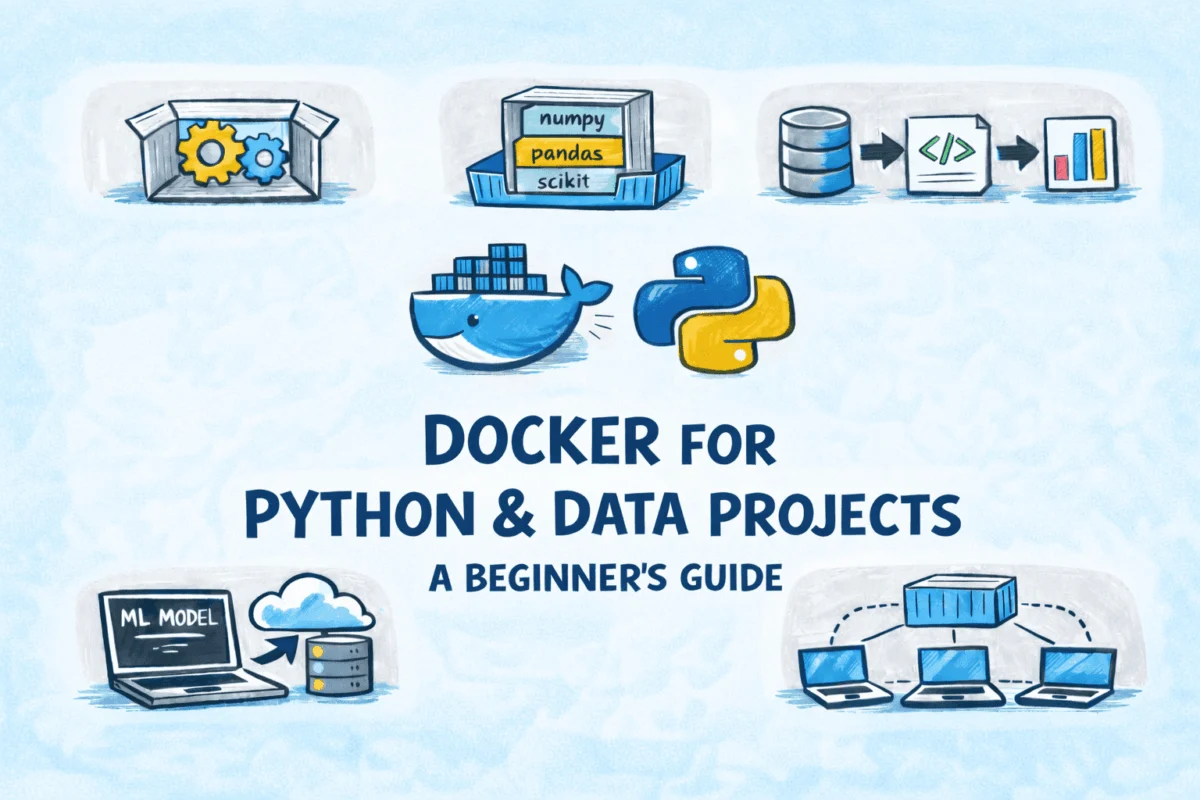
This comprehensive guide will demystify Docker through a series of practical, data-centric examples. We will embark on a journey that covers the essential workflows for data professionals: containerizing a standalone Python script, deploying a machine learning model as a web service using FastAPI, orchestrating a multi-component data pipeline with Docker Compose, and automating scheduled tasks with a dedicated cron container. Each section is designed to be accessible to beginners, providing clear explanations and actionable steps without assuming prior extensive Docker expertise.
Prerequisites for Getting Started
Before diving into the practical applications of Docker, ensure you have the following foundational elements in place:
- Docker Desktop: Install Docker Desktop for your operating system (Windows, macOS, or Linux). This provides the Docker Engine, CLI, and necessary tools.
- Python Installation: While Docker containers manage their own Python environments, having Python installed locally is beneficial for writing and testing your scripts before containerization.
- Basic Command-Line Familiarity: Comfort with navigating directories, executing commands, and understanding basic shell operations will enhance your experience.
For those seeking a quick refresher on specific concepts, the following resources can be invaluable:
The subsequent examples will progressively introduce Docker concepts, ensuring that each step is explained in detail, making the learning curve manageable for newcomers to containerization.
Containerizing a Python Script with Pinned Dependencies
A fundamental and highly prevalent use case for Docker in data projects involves ensuring that a Python script, along with its specific set of dependencies, can execute reliably across any environment. This scenario is particularly crucial when collaborating with team members or deploying scripts to production servers.
Let’s consider the development of a data cleaning script. This script will be designed to ingest a raw sales dataset in CSV format, systematically eliminate duplicate entries, impute missing values using appropriate strategies, and finally, output a refined, cleaned version of the data.
Project Structure for Data Cleaning
A clear and organized project structure is key to managing containerized applications effectively. For our data cleaning example, the project will be organized as follows:
data-cleaner/
├── Dockerfile
├── requirements.txt
├── clean_data.py
└── data/
    └── raw_sales.csv
This hierarchical arrangement ensures that all necessary components – the Dockerfile for building the image, the requirements file listing dependencies, the Python script itself, and the data files – are logically grouped.
The Data Cleaning Script
The core of our data cleaning process is implemented in the clean_data.py script. This script leverages the powerful Pandas library for efficient data manipulation.
# clean_data.py
import pandas as pd
import os

INPUT_PATH = "data/raw_sales.csv"
OUTPUT_PATH = "data/cleaned_sales.csv"

print("Reading data...")
try:
    df = pd.read_csv(INPUT_PATH)
    print(f"Rows before cleaning: len(df)")

    # Drop duplicate rows
    initial_rows = len(df)
    df = df.drop_duplicates()
    rows_after_deduplication = len(df)
    print(f"Dropped initial_rows - rows_after_deduplication duplicate rows.")

    # Fill missing numeric values with column median
    for col in df.select_dtypes(include='number').columns:
        if df[col].isnull().any():
            median_val = df[col].median()
            df[col] = df[col].fillna(median_val)
            print(f"Filled missing values in numeric column 'col' with median (median_val).")

    # Fill missing text values with 'Unknown'
    for col in df.select_dtypes(include='object').columns:
        if df[col].isnull().any():
            df[col] = df[col].fillna('Unknown')
            print(f"Filled missing values in text column 'col' with 'Unknown'.")

    print(f"Rows after cleaning: len(df)")
    df.to_csv(OUTPUT_PATH, index=False)
    print(f"Cleaned file saved to OUTPUT_PATH")

except FileNotFoundError:
    print(f"Error: Input file not found at INPUT_PATH")
except Exception as e:
    print(f"An unexpected error occurred: e")
This script is designed to be robust, providing feedback on the cleaning process and handling potential errors gracefully.
The Importance of Pinning Dependencies
A critical aspect of ensuring reproducible builds and consistent execution is "pinning" dependencies. This means specifying the exact versions of libraries used, rather than relying on the latest available versions. Without pinned dependencies, a simple pip install pandas command could install different versions of Pandas on different machines, potentially leading to subtle behavioral differences or outright errors. By defining exact versions in the requirements.txt file, we guarantee that every developer and every deployment environment will utilize the same, tested library versions.
# requirements.txt
pandas==2.2.0
openpyxl==3.1.2
In this example, we’ve explicitly set pandas to version 2.2.0 and openpyxl to 3.1.2. This practice is a cornerstone of reliable software development, especially in data science where subtle library version changes can impact analytical results.
Crafting the Dockerfile
The Dockerfile is the blueprint for building our Docker image. This specific Dockerfile is optimized for creating a minimal and cache-efficient image for our cleaning script.
# Use a slim Python 3.11 base image for reduced size
FROM python:3.11-slim

# Set the working directory inside the container
WORKDIR /app

# Copy and install dependencies first. This leverages Docker's layer caching.
# If requirements.txt doesn't change, this layer is reused, speeding up subsequent builds.
COPY requirements.txt .
RUN pip install --no-cache-dir -r requirements.txt

# Copy the Python script into the container's working directory
COPY clean_data.py .

# Define the default command to execute when a container starts from this image
CMD ["python", "clean_data.py"]
Several key design choices are evident in this Dockerfile. The use of python:3.11-slim instead of a full Python image significantly reduces the image size. Slim variants are stripped of many non-essential packages, making them ideal for deployment where resource footprint matters.
The order of operations – copying requirements.txt and installing dependencies before copying the rest of the application code – is a strategic optimization. Docker builds images in layers, and it caches each layer. By placing dependency installation early, if only the clean_data.py script changes (but not requirements.txt), Docker can reuse the cached layer containing the installed dependencies. This can shave minutes off build times during iterative development.
Building and Executing the Container
With the Dockerfile and project structure in place, we can now build the Docker image and run it as a container.
First, build the image, giving it a descriptive tag:
docker build -t data-cleaner .Next, run the container. The -v flag is crucial here; it mounts your local data/ directory into the container’s /app/data directory. This mechanism allows the script inside the container to read your raw_sales.csv and write the cleaned_sales.csv back to your local filesystem.
docker run --rm -v $(pwd)/data:/app/data data-cleanerThe --rm flag ensures that the container is automatically removed once it completes its execution. For single-run scripts like this, it’s good practice to keep your system clean by discarding stopped containers. This approach ensures that the data remains on your local filesystem, never being baked into the image itself, maintaining separation of code and data.
Serving a Machine Learning Model with FastAPI
A common requirement in data science workflows is to make trained machine learning models accessible via a web API. This allows other applications or services to send data to the model and receive predictions in real-time. FastAPI is an excellent choice for this purpose due to its high performance, minimal footprint, and built-in data validation capabilities powered by Pydantic.
Project Structure for ML API
For our machine learning API example, the project will be structured to clearly separate the model artifact from the application code.
ml-api/
├── Dockerfile
├── requirements.txt
├── app.py
└── model.pkl
This organization separates the trained model (model.pkl) from the API logic (app.py), making the project modular and easier to manage.
Developing the FastAPI Application
The app.py script will load the pre-trained model once during the application’s startup and expose a /predict endpoint for receiving prediction requests.
# app.py
from fastapi import FastAPI, HTTPException
from pydantic import BaseModel
import pickle
import numpy as np
import os

app = FastAPI(title="Sales Forecast API")

# Define the path to the model file
MODEL_PATH = "model.pkl"

# Load the model once at startup
try:
    with open(MODEL_PATH, "rb") as f:
        model = pickle.load(f)
    print(f"Model loaded successfully from MODEL_PATH")
except FileNotFoundError:
    print(f"Error: Model file not found at MODEL_PATH")
    model = None # Set model to None if file not found
except Exception as e:
    print(f"Error loading model: e")
    model = None # Set model to None on other loading errors

class PredictRequest(BaseModel):
    region: str
    month: int
    marketing_spend: float
    units_in_stock: int

class PredictResponse(BaseModel):
    region: str
    predicted_revenue: float

@app.get("/health")
def health():
    """
    Health check endpoint.
    Returns a status indicating if the service is operational.
    """
    if model is None:
        return "status": "unhealthy", "message": "Model not loaded"
    return "status": "ok"

@app.post("/predict", response_model=PredictResponse)
def predict(request: PredictRequest):
    """
    Receives prediction requests and returns the predicted revenue.
    """
    if model is None:
        raise HTTPException(status_code=503, detail="Model is not available for predictions.")

    try:
        # Prepare features for the model. Ensure order matches training data.
        features = [[
            request.month,
            request.marketing_spend,
            request.units_in_stock
        ]]

        # Convert features to a numpy array if the model expects it
        features_np = np.array(features)

        prediction = model.predict(features_np)

        # Ensure the prediction is a standard float type for JSON serialization
        predicted_revenue_float = float(prediction[0]) if prediction.size > 0 else 0.0

        return PredictResponse(
            region=request.region,
            predicted_revenue=round(predicted_revenue_float, 2)
        )
    except Exception as e:
        print(f"Prediction error: e") # Log the error for debugging
        raise HTTPException(status_code=500, detail=f"Internal server error during prediction: str(e)")
Key features of this application include:
- Pydantic for Validation: The
PredictRequestclass automatically validates incoming JSON data. If a request is missing a field or has a field with an incorrect data type, FastAPI will reject it with a clear error message before the prediction logic is executed. - Efficient Model Loading: The model is loaded once when the application starts, not on every incoming request. This significantly improves response times.
- Health Check Endpoint: The
/healthendpoint is a standard practice. It allows external systems, such as load balancers or orchestration platforms, to monitor the service’s operational status and determine if it’s ready to receive traffic. The health check now also verifies if the model has been successfully loaded.
Dockerfile for the ML API
This Dockerfile bakes the trained model directly into the Docker image, making the resulting container fully self-contained and independent.
# Use a slim Python 3.11 base image
FROM python:3.11-slim

# Set the working directory
WORKDIR /app

# Copy the requirements file and install dependencies
COPY requirements.txt .
RUN pip install --no-cache-dir -r requirements.txt

# Copy the model artifact and the application script into the container
COPY model.pkl .
COPY app.py .

# Expose the port the application will listen on (FastAPI default is 8000)
EXPOSE 8000

# Command to run the application using Uvicorn, ensuring it listens on all interfaces
CMD ["uvicorn", "app:app", "--host", "0.0.0.0", "--port", "8000"]
A critical aspect here is EXPOSE 8000. This informs Docker that the container will listen on port 8000 at runtime. The CMD instruction uses uvicorn, a high-performance ASGI server, to run the FastAPI application. The --host 0.0.0.0 flag is vital; it ensures that Uvicorn listens on all network interfaces within the container, making the API accessible from outside the container. Without it, the API would only be reachable from within the container itself.
Building and Running the ML API Container
To build the Docker image for the ML API:
docker build -t ml-api .Once the image is built, you can run a container from it and map the host’s port 8000 to the container’s port 8000:
docker run --rm -p 8000:8000 ml-apiYou can then test the API using curl or any API client:
curl -X POST http://localhost:8000/predict
  -H "Content-Type: application/json"
  -d '"region": "North", "month": 3, "marketing_spend": 5000.0, "units_in_stock": 320'
This command sends a POST request with sample prediction data to the /predict endpoint. The API will return a JSON response containing the predicted revenue.
Building a Multi-Service Pipeline with Docker Compose
In the realm of data science and engineering, projects rarely consist of a single, isolated process. More often, they involve interconnected components such as databases, data loading scripts, and analytical dashboards. Docker Compose is an indispensable tool for defining and managing multi-container Docker applications, allowing these disparate services to function cohesively as a single unit. Each service operates within its own container but shares a private Docker network, enabling seamless communication between them.
Project Structure for a Data Pipeline
To illustrate this, we’ll structure a pipeline with three distinct services: a PostgreSQL database, a data loader script, and a dashboard application. Each service will reside in its own subdirectory.
pipeline/
├── docker-compose.yml
├── loader/
│   ├── Dockerfile
│   ├── requirements.txt
│   └── load_data.py
└── dashboard/
    ├── Dockerfile
    ├── requirements.txt
    └── app.py
This modular structure promotes clear separation of concerns and simplifies development and management.
Defining the Docker Compose File
The docker-compose.yml file is the orchestrator for our multi-service application. It declares all services, their dependencies, and configurations, including network settings and health checks.
# docker-compose.yml
version: "3.9"

services:

  db:
    image: postgres:15
    environment:
      POSTGRES_USER: admin
      POSTGRES_PASSWORD: secret
      POSTGRES_DB: analytics
    volumes:
      - pgdata:/var/lib/postgresql/data  # Persist database data
    healthcheck:
      test: ["CMD-SHELL", "pg_isready -U admin -d analytics"] # Check if DB is ready
      interval: 5s
      retries: 5

  loader:
    build: ./loader  # Build from the loader directory
    depends_on:
      db:
        condition: service_healthy # Wait until the db service is healthy
    environment:
      DATABASE_URL: postgresql://admin:secret@db:5432/analytics # Connection string for the DB service

  dashboard:
    build: ./dashboard # Build from the dashboard directory
    depends_on:
      db:
        condition: service_healthy # Wait until the db service is healthy
    ports:
      - "8501:8501" # Map host port 8501 to container port 8501
    environment:
      DATABASE_URL: postgresql://admin:secret@db:5432/analytics # Connection string for the DB service

volumes:
  pgdata: # Define the named volume for persistent data
Key aspects of this Compose file:
- Service Definitions: Each top-level key (
db,loader,dashboard) defines a distinct service. - Database Service (
db): We utilize the officialpostgres:15image. Environment variables are set for database credentials and name. Thepgdatavolume ensures data persistence across container restarts. Thehealthcheckis crucial; it usespg_isreadyto verify that the PostgreSQL server is not just running but also ready to accept connections. - Dependency Management (
depends_on): Theloaderanddashboardservices are configured to start only after thedbservice is deemed "healthy." This prevents connection errors that could arise if a service attempts to connect to the database before it’s fully initialized. - Network Communication: Services within a Docker Compose setup automatically join a shared network. This allows them to communicate using their service names as hostnames. For instance, the
loaderconnects todb:5432, leveraging Docker’s internal DNS resolution. - Port Mapping (
ports): Thedashboardservice exposes port8501to the host machine, making the dashboard accessible vialocalhost:8501.
The Data Loading Script
The load_data.py script within the loader directory is responsible for ingesting data into the PostgreSQL database. It waits briefly for the database to become fully operational before attempting to connect and load a CSV file.
# loader/load_data.py
import pandas as pd
from sqlalchemy import create_engine, text
import os
import time

DATABASE_URL = os.environ.get("DATABASE_URL")
if not DATABASE_URL:
    raise ValueError("DATABASE_URL environment variable not set.")

# Give the DB a moment to be fully ready, even after healthcheck passes.
# This provides an extra layer of robustness for initial startup.
print("Waiting for database to be ready...")
time.sleep(5) # Increased sleep time for more robust initialization

try:
    engine = create_engine(DATABASE_URL)

    # Verify database connection before proceeding
    with engine.connect() as connection:
        connection.execute(text("SELECT 1"))
    print("Database connection successful.")

    # Load data from a CSV file, assuming it's in the same directory as the script
    # For this example, we'll assume 'sales_data.csv' is copied into the container.
    # In a real scenario, you might mount this file or copy it in the Dockerfile.
    CSV_FILE_PATH = "sales_data.csv" # Ensure this file is copied into the container
    if not os.path.exists(CSV_FILE_PATH):
        raise FileNotFoundError(f"'CSV_FILE_PATH' not found in the container.")

    df = pd.read_csv(CSV_FILE_PATH)

    # Replace NaN values in all columns with a placeholder to avoid SQL errors if not handled by DB schema
    df = df.fillna('N/A') # Using 'N/A' as a placeholder, adjust as needed

    # Use 'replace' for simplicity, ensuring idempotency if the script runs multiple times
    df.to_sql("sales", engine, if_exists="replace", index=False)

    print(f"Successfully loaded len(df) rows into the 'sales' table.")

except FileNotFoundError as fnf_error:
    print(f"Error: fnf_error")
except ValueError as ve_error:
    print(f"Configuration Error: ve_error")
except Exception as e:
    print(f"An unexpected error occurred during data loading: e")
    # In a production scenario, you might want to exit with a non-zero status code
    # sys.exit(1)
The DATABASE_URL environment variable is crucial here. It’s injected into the container by Docker Compose, allowing the script to connect to the db service using the service name as the hostname. The time.sleep(5) call provides an additional buffer to ensure the database is fully ready.
Launching the Entire Pipeline
With the docker-compose.yml file and service configurations in place, bringing up the entire multi-service application is as simple as executing:
docker compose up --buildThis command will build the images for the loader and dashboard services (if they don’t exist or have changed) and then start all defined services, orchestrating their startup order based on the depends_on and healthcheck configurations.
To stop all services managed by Docker Compose:
docker compose downThis command will stop and remove the containers, networks, and volumes created by docker compose up.
Scheduling Jobs with a Cron Container
For tasks that need to be executed on a recurring schedule, such as fetching data from an API hourly or performing regular data maintenance, a dedicated cron container offers an elegant and lightweight solution. This approach avoids the need for complex orchestration systems like Airflow for simpler, time-based jobs.
Project Structure for a Data Fetcher
Our data fetching project will include the script, its dependencies, and a crontab file to define the schedule.
data-fetcher/
├── Dockerfile
├── requirements.txt
├── fetch_data.py
└── crontab
This structure keeps all the necessary components for the scheduled job neatly organized.
The Data Fetching Script
The fetch_data.py script uses the requests library to interact with an external API, retrieves data, and saves it as a timestamped CSV file.
# fetch_data.py
import requests
import pandas as pd
from datetime import datetime
import os
import sys

# Using a placeholder API URL for demonstration.
# In a real-world scenario, this would be a valid API endpoint.
API_URL = "https://jsonplaceholder.typicode.com/posts" # Example API
OUTPUT_DIR = "/app/output" # Directory for output files within the container

# Ensure the output directory exists
os.makedirs(OUTPUT_DIR, exist_ok=True)

print(f"[datetime.now()] Starting data fetch process...")

try:
    print(f"[datetime.now()] Fetching data from: API_URL")
    response = requests.get(API_URL, timeout=15) # Increased timeout for network latency
    response.raise_for_status() # Raise an exception for bad status codes (4xx or 5xx)

    data = response.json()

    if not data:
        print(f"[datetime.now()] No data received from API.")
        sys.exit(0) # Exit gracefully if no data is returned

    # Assuming the API returns a list of dictionaries, convert to DataFrame
    # If the API returns a nested structure like "records": [...], adjust accordingly
    df = pd.DataFrame(data)
    print(f"[datetime.now()] Successfully fetched len(df) records.")

    # Create a timestamp for the filename
    timestamp = datetime.now().strftime("%Y%m%d_%H%M%S")
    output_path = os.path.join(OUTPUT_DIR, f"sales_data_timestamp.csv")

    df.to_csv(output_path, index=False)
    print(f"[datetime.now()] Saved data to output_path")

except requests.exceptions.RequestException as req_err:
    print(f"[datetime.now()] Network or API error: req_err")
    sys.exit(1) # Exit with error code
except ValueError as val_err:
    print(f"[datetime.now()] Data parsing error: val_err")
    sys.exit(1)
except Exception as e:
    print(f"[datetime.now()] An unexpected error occurred: e")
    sys.exit(1)
This script includes robust error handling for network issues, API response errors, and data parsing problems, ensuring that any failures are logged. The OUTPUT_DIR is mounted from the host, ensuring that generated files are accessible locally.
Defining the Crontab Schedule
The crontab file specifies the schedule for our job. This example is configured to run the fetch_data.py script every hour.
# Run the data fetch script every hour, at the top of the hour
0 * * * * python /app/fetch_data.py >> /var/log/fetch.log 2>&1
The >> /var/log/fetch.log 2>&1 directive is crucial for logging. It redirects both standard output (stdout) and standard error (stderr) to a log file within the container. This allows us to inspect the script’s execution history and diagnose any issues after the fact.
Dockerfile for the Cron Container
This Dockerfile installs the cron daemon, registers our scheduled job, and ensures that cron runs in the foreground, which is necessary for Docker containers.
# Use a slim Python 3.11 base image
FROM python:3.11-slim

# Install cron and necessary utilities
RUN apt-get update && apt-get install -y --no-install-recommends cron &&
    rm -rf /var/lib/apt/lists/*

# Set the working directory
WORKDIR /app

# Copy and install Python dependencies
COPY requirements.txt .
RUN pip install --no-cache-dir -r requirements.txt

# Copy the data fetching script
COPY fetch_data.py .

# Copy the crontab file to the cron configuration directory
COPY crontab /etc/cron.d/fetch-job

# Ensure the crontab file has the correct permissions
RUN chmod 0644 /etc/cron.d/fetch-job

# Apply the crontab configuration
RUN crontab /etc/cron.d/fetch-job

# Create the log file and set permissions
RUN touch /var/log/fetch.log
RUN chmod 0666 /var/log/fetch.log

# Start cron in the foreground. This is essential for Docker.
# If cron runs in the background, the container's main process would exit, stopping the container.
CMD ["cron", "-f"]
The cron -f command is vital. It tells the cron daemon to run in the foreground. Docker containers remain active as long as their primary process is running. If cron were to run in the background (its default behavior), the CMD would complete, and Docker would terminate the container.
Building and Running the Cron Container
To build the Docker image for the data fetcher:
docker build -t data-fetcher .To run the container in detached mode (in the background) and mount the local output/ directory:
docker run -d --name fetcher -v $(pwd)/output:/app/output data-fetcherThe -d flag runs the container in detached mode, and --name fetcher assigns a recognizable name. The -v $(pwd)/output:/app/output volume mapping ensures that any CSV files generated by the script are saved to your local output/ directory.
To inspect the logs of the running cron job:
docker exec fetcher cat /var/log/fetch.logThis command executes cat /var/log/fetch.log inside the running fetcher container, allowing you to review the output and any errors from the scheduled script.
Wrapping Up: When to Embrace Docker
Docker offers a powerful and standardized solution for managing environments and deploying applications, particularly within the Python and data science ecosystem. Its ability to encapsulate dependencies and ensure consistent execution across different platforms significantly reduces development friction and deployment complexities.
Docker is an excellent choice when:
- Reproducibility is paramount: Ensuring that code runs identically across development, testing, and production environments is critical.
- Dependency conflicts arise: Managing multiple projects with differing, potentially conflicting, library versions becomes manageable.
- Onboarding new team members is cumbersome: New developers can get up and running quickly by simply pulling and running a Docker image, bypassing complex setup procedures.
- Deployment to diverse environments is necessary: Deploying to cloud platforms, on-premises servers, or even local machines becomes a uniform process.
- Microservices architecture is adopted: Orchestrating multiple independent services that communicate with each other is simplified with tools like Docker Compose.
- Scheduled tasks require isolation: Running background jobs or scheduled scripts in a predictable and contained environment is needed.
Conversely, Docker might be overkill or less beneficial in certain situations:
- Simple, single-user scripts: For very basic Python scripts run by a single user on their personal machine, where dependency management is not a significant issue, Docker might introduce unnecessary overhead.
- Rapid prototyping without immediate deployment needs: If the primary focus is on exploring algorithms or quick scripting without immediate plans for distribution or team collaboration, the initial setup of Docker might slow down rapid iteration.
- Projects with minimal or no external dependencies: If a script relies solely on Python’s standard library and has no external package requirements, containerization might not offer substantial advantages.
- Extremely resource-constrained environments: While Docker images can be slimmed down, running multiple containers can still consume more resources than native execution, which could be a factor in highly specialized, resource-limited scenarios.
For those eager to delve deeper into the practical applications of Docker in data science, the resource "5 Simple Steps to Mastering Docker for Data Science" offers further insights and advanced techniques.
Bala Priya C is a developer and technical writer from India, passionate about the intersection of mathematics, programming, data science, and content creation. Her expertise spans DevOps, data science, and natural language processing. She is dedicated to sharing knowledge with the developer community through tutorials, guides, and insightful articles.